
Tour of the app
TeamsPIM is a personal app in Microsoft Teams. Open it from the Teams app bar, or search for TeamsPIM in Teams.
The three tabs
Section titled “The three tabs”| Tab | What it is for |
|---|---|
| Chat | Your chat with the TeamsPIM bot. Approval cards and updates about your own requests arrive here. |
| Dashboard | Request and activate roles, see your assignments and your request history. |
| About | Information about the app. |
The Dashboard only works inside Teams. If you open it in a normal browser, you see “Open TeamsPIM in Microsoft Teams” and an Open Microsoft Teams button.
The Dashboard menu
Section titled “The Dashboard menu”The menu on the left of the Dashboard has these pages:
| Menu item | What you find there |
|---|---|
| Overview | Your latest requests and the roles you activate most. |
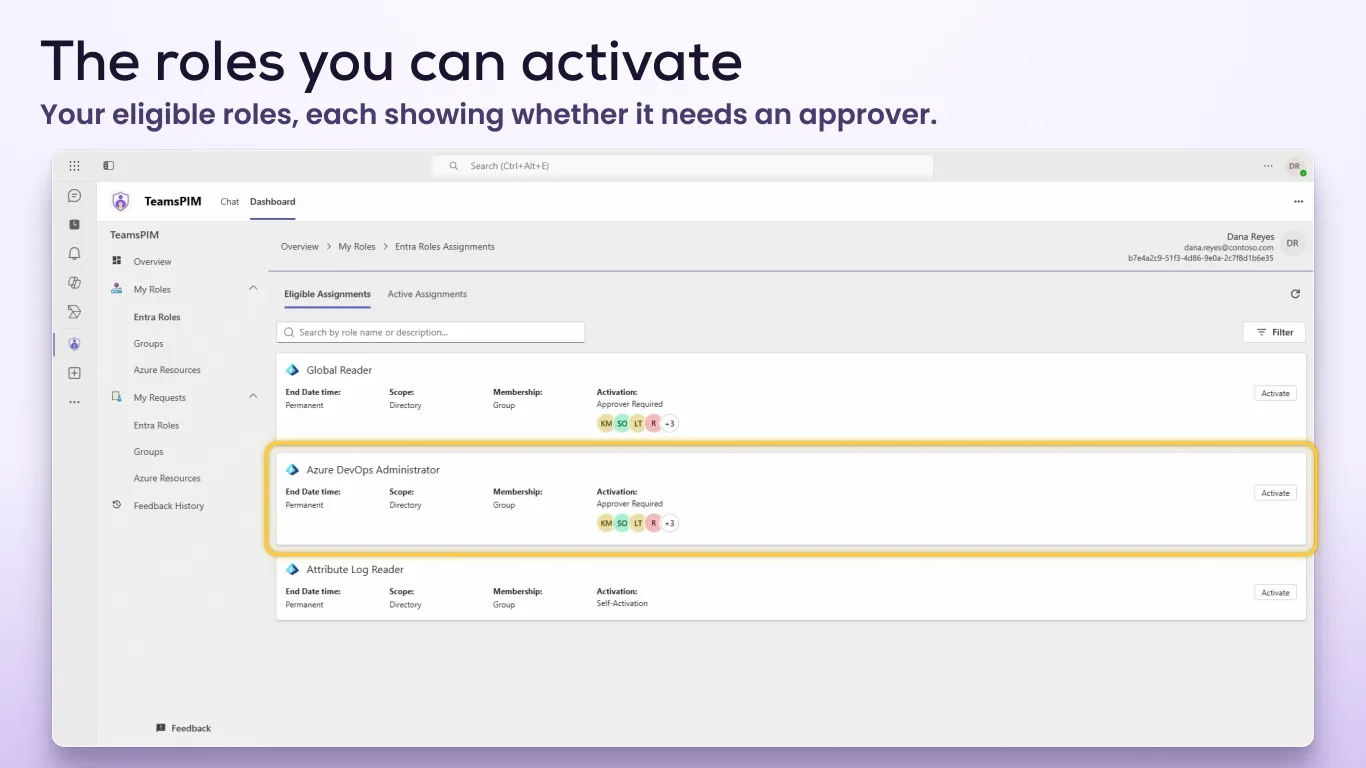
| My Roles → Entra Roles, Groups, Azure Resources | Your eligible and active assignments. This is where you request a role and deactivate one. |
| My Requests → Entra Roles, Groups, Azure Resources | Your request history for the last month. This is where you cancel a pending request. |
| Feedback History | The feedback you have sent. |
| PIM reports | Assignment and activation reports. Only shown to users with certain admin roles — see PIM reports. |
| Feedback | A button at the bottom of the menu that opens a feedback form. |
The top bar
Section titled “The top bar”The top bar shows where you are, plus your name, your user name and your tenant ID. Select your name to open a menu with Switch Directory, which lets you work in another directory if your organisation has set that up. See Switch directory.
The Overview page
Section titled “The Overview page”Latest Requests
Section titled “Latest Requests”A row of cards for your own requests from the last month, across Entra roles, groups and Azure resources, newest first. Each card shows the role, when you asked, your justification, the duration, whether approval is needed, who reviewed it, and a progress bar for the request. When a request is granted, a countdown shows how long the role has left.
See Track your requests for how to read these cards.
Most Frequent PIM Requests
Section titled “Most Frequent PIM Requests”Three cards — Entra Roles, Entra Groups and Azure Resources — each listing up to five roles you activated successfully in the last 30 days, with how many times. Select Activate next to one to request it again. Activate is greyed out if you are no longer eligible for that role.